The Rank Math setup wizard appears friendly and almost harmless. I remember clicking through it like I was skipping YouTube ads. Big mistake. My pages didn’t rank, Search Console was empty, and I had no clue why. Frustrating doesn’t even begin to describe it.

Want to avoid SEO mistakes right from the start?
Rank Math Pro unlocks advanced SEO controls, schema automation, and detailed analytics. These features help you set things up correctly from day one. You can do this without guessing.
No credit card. No risk. Just better SEO foundations.
That wizard is actually the foundation of your entire SEO setup. If you mess this up, everything else feels broken later. In this guide, I’ll walk you through how to use the Rank Math setup wizard the right way. It’s not the perfect way, but the way that actually works.
“Over 70% of WordPress users install an SEO plugin… and then never set it up properly.”
I didn’t believe that stat at first. Then I became part of it.
No fluff. No theory dumps. Just real-world setup advice I learned the hard way.
What Is Rank Math Setup Wizard and Why It Matters
When you install Rank Math for the first time, the setup wizard is the very first thing that pops up. It looks simple. Almost too simple. A few questions, some toggles, a couple of “Next” buttons — and boom, SEO done. That’s what I thought at least.
Turns out, that wizard is doing way more behind the scenes than most people realize.
The Rank Math setup wizard decides how your site talks to search engines from day one. It sets indexing rules. It builds your initial sitemap structure. It applies schema basics. It even influences how Google understands your site’s identity. These aren’t cosmetic settings. They’re foundational.
I learned this the hard way. On one of my early blogs, I rushed through the wizard in under five minutes. Didn’t think much of it. Weeks later, pages weren’t showing up in Google. Search Console was throwing warnings. I kept tweaking random settings. I hoped something would magically work. Spoiler: it didn’t.
What makes the setup wizard so important is that SEO plugins don’t “optimize” your site automatically. They apply rules. And the wizard is where those rules are first written. If the rules are wrong, everything built on top of them feels shaky.
Another thing people miss is that Rank Math assumes you know what you’re doing. It gives powerful options early, even to beginners. That’s great — unless you click blindly. One wrong indexing choice, and suddenly categories, tags, or even posts can be hidden from Google. I’ve seen sites lose traffic just because of that.
So yeah, the Rank Math setup wizard matters because:
- It defines what content Google can see
- It controls how your site is categorized
- It lays the groundwork for schema and SEO automation
Think of it like pouring the foundation of a house. You can repaint the walls later. You can change furniture anytime. But fixing the foundation after the house is built? That’s expensive. Same thing here.
If you want a deeper breakdown of features, pricing, pros and cons, and real-world usage, check out my detailed Rank Math Review to see whether the plugin is the right fit for your website.
If you treat the setup wizard seriously, Rank Math becomes insanely powerful. If you rush it, you’ll spend months fixing avoidable problems. I’ve been on both sides. One feels calm. The other feels… frustrating.
Things to Do Before Starting Rank Math Setup Wizard
This part doesn’t get talked about enough, and honestly, it should. Before you even touch the Rank Math setup wizard, there are a few things you must have ready. Ensure everything is in place beforehand. I didn’t do this the first time. I paid for it later with confusion. It led to rework and some light panic.
First thing: take a backup.
I know, boring advice. I used to skip this all the time. “It’s just an SEO plugin,” I told myself. Then I accidentally noindexed half a site while testing settings. Not fun. Even a quick hosting backup is enough. Just knowing you can roll back makes you calmer while setting things up.
Next, make sure you know what type of site you’re running.
Is it a blog? A business website? Affiliate site? Portfolio? The setup wizard asks this early, and the answer affects schema, titles, and how Google understands your site. I once selected “Business” for a simple content blog because it sounded more professional. Bad move. The schema didn’t match the content, and rich results never showed properly.
You should also have access to:
- Google Search Console
- A Google account you actually control
Don’t try to “connect later.” I’ve tried that shortcut. It usually means you forget, then wonder why Rank Math shows no data. The wizard integration is smoother and cleaner if you do it upfront.
Another thing people overlook is site stability. Don’t run the setup wizard while:
- Migrating hosts
- Changing themes
- Importing demo content
I once ran the wizard during a theme switch. The sitemap was updated twice, URLs changed, and Google got mixed signals. It worked out eventually, but it created unnecessary noise.
Also, close unnecessary tabs. Sounds silly, but focus helps here. When you rush, you click defaults without thinking. I’ve done that too many times.
So before starting the Rank Math setup wizard, your mini checklist should look like this:
- Backup ready
- Clear idea of your site’s purpose
- Google account access confirmed
- No major site changes are happening
Spend five extra minutes here. Those five minutes can save you hours of cleanup later. Ask me how I know.
How to Start Rank Math Setup Wizard (Step-by-Step)
The Rank Math setup wizard is an interactive guide that helps you configure essential SEO settings after installing the plugin.
It typically launches automatically upon the first activation, but can also be accessed manually from your WordPress dashboard.
Accessing the Setup Wizard
If the wizard does not start automatically, you can access it in two ways:
- From the Plugins page: Navigate to WordPress Dashboard → Plugins → Installed Plugins. Find “Rank Math SEO.” Then, select the option to run the setup wizard.
- From the Rank Math Dashboard: Go to WordPress Dashboard. Navigate to Rank Math SEO → Dashboard. Click on the Setup Wizard tab.
After installing and activating the Rank Math SEO plugin, WordPress automatically redirects you to a screen. This screen asks you to connect your Rank Math account.
Click “Connect Your Account,” optionally enable usage tracking, or choose “Skip Now” if you want to proceed without connecting.
If you already have an account, use the “OK, ACTIVATE NOW” button to activate. Then you will be redirected to the Setup Wizard.
The setup wizard is just the beginning.
Rank Math Pro gives you deeper control over schema. It enhances keyword tracking and analytics. This allows you to fine-tune your SEO after the initial setup.
Starting the Setup Wizard
The Setup Wizard lets you configure essential SEO settings in a guided way instead of doing everything manually.
From your WordPress dashboard, you can always reopen it under Rank Math SEO. Go to Dashboard → Setup Wizard if you skipped it earlier.
Rank Math offers three modes: Easy, Advanced, and Custom Mode (PRO). You can switch between them at any time. This depends on how granular you want your control to be.
Custom Mode
Custom Mode lets you upload a previously exported Rank Math settings file (such as .txt or .json) so you can reuse the same configuration across multiple sites. Only Rank Math settings are imported with this method. Post or page meta is not imported. This makes it useful for standardizing SEO settings while keeping content independent.
Compatibility Check
Rank Math checks compatibility before running the wizard. It ensures that your WordPress environment and other SEO plugins do not conflict. If conflicting SEO plugins are detected, Rank Math shows them. For example, it may identify Yoast SEO. Rank Math allows you to safely deactivate them. This way, their data can be imported in the next step.
Import
In the Import step, Rank Math scans your site for existing SEO data from other plugins. It then displays what can be migrated.
You can import metadata and settings from plugins like Yoast SEO, All in One SEO, and SEOPress. You can also import from Redirection, Schema Pro, and All in One Schema. Use the “Start Import” button to perform the import.
After the progress reaches 100%, click “Continue.” You can later access this screen. Go to Rank Math SEO → Status & Tools → Import & Export → Other Plugins.
Your Site
The “Your Site” tab tells Rank Math what type of website you are running. This information also helps search engines know your site type. As a result, appropriate metadata can be added.
You choose whether your site is a personal or business property. This could be a personal blog, news site, small business, webshop, or other. This choice affects how Google may represent it in knowledge panels.
1. Learn More About the Setup Wizard
Within this section, Rank Math links to documentation. It also connects to its Knowledge Base. This allows you to access tutorials directly from your dashboard.
This includes quick links to setup guides and a built-in search to find help articles without leaving WordPress.
2. Your Website Is
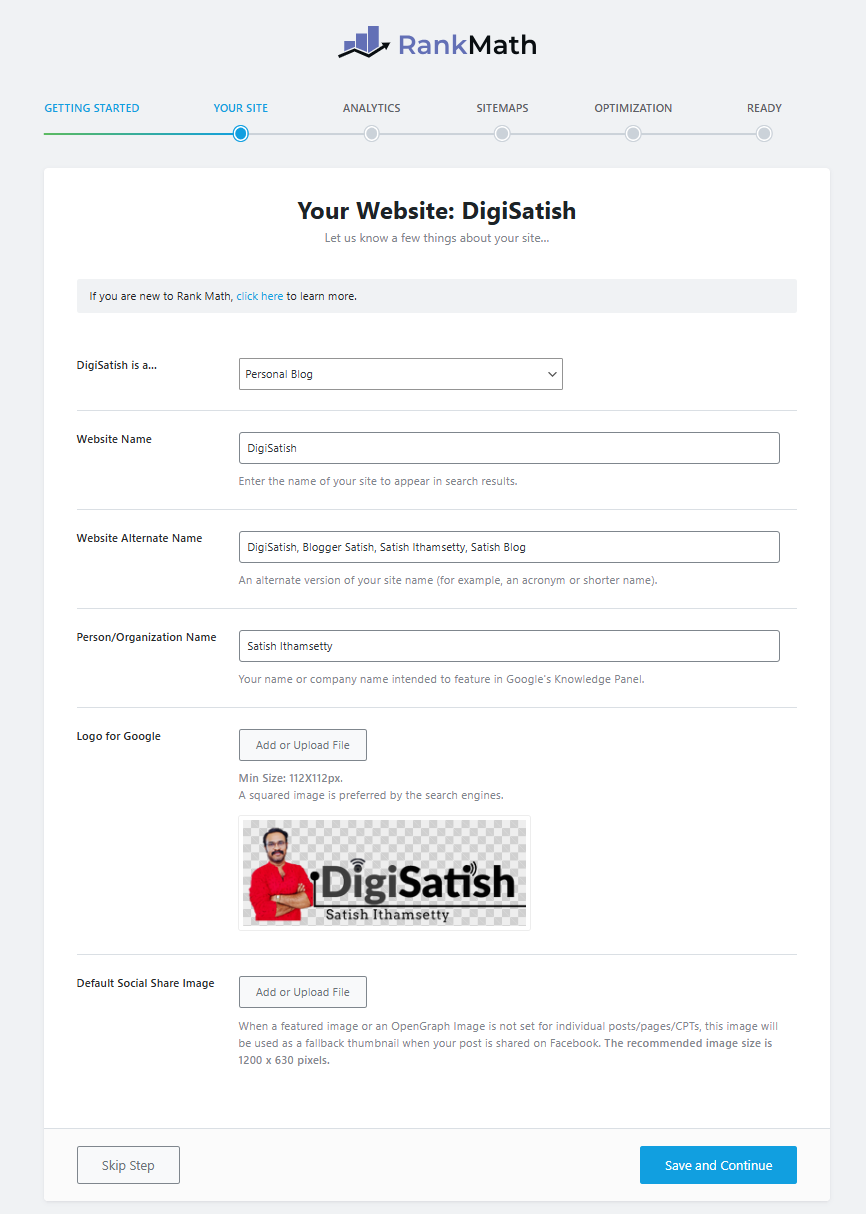
Using the “Your Website is” dropdown, you specify the basic site type. Rank Math uses this information to decide whether to treat the site as representing a person or an organization.
This classification helps search engines better understand your brand entity and can influence Knowledge Graph entries.
3. Business Type
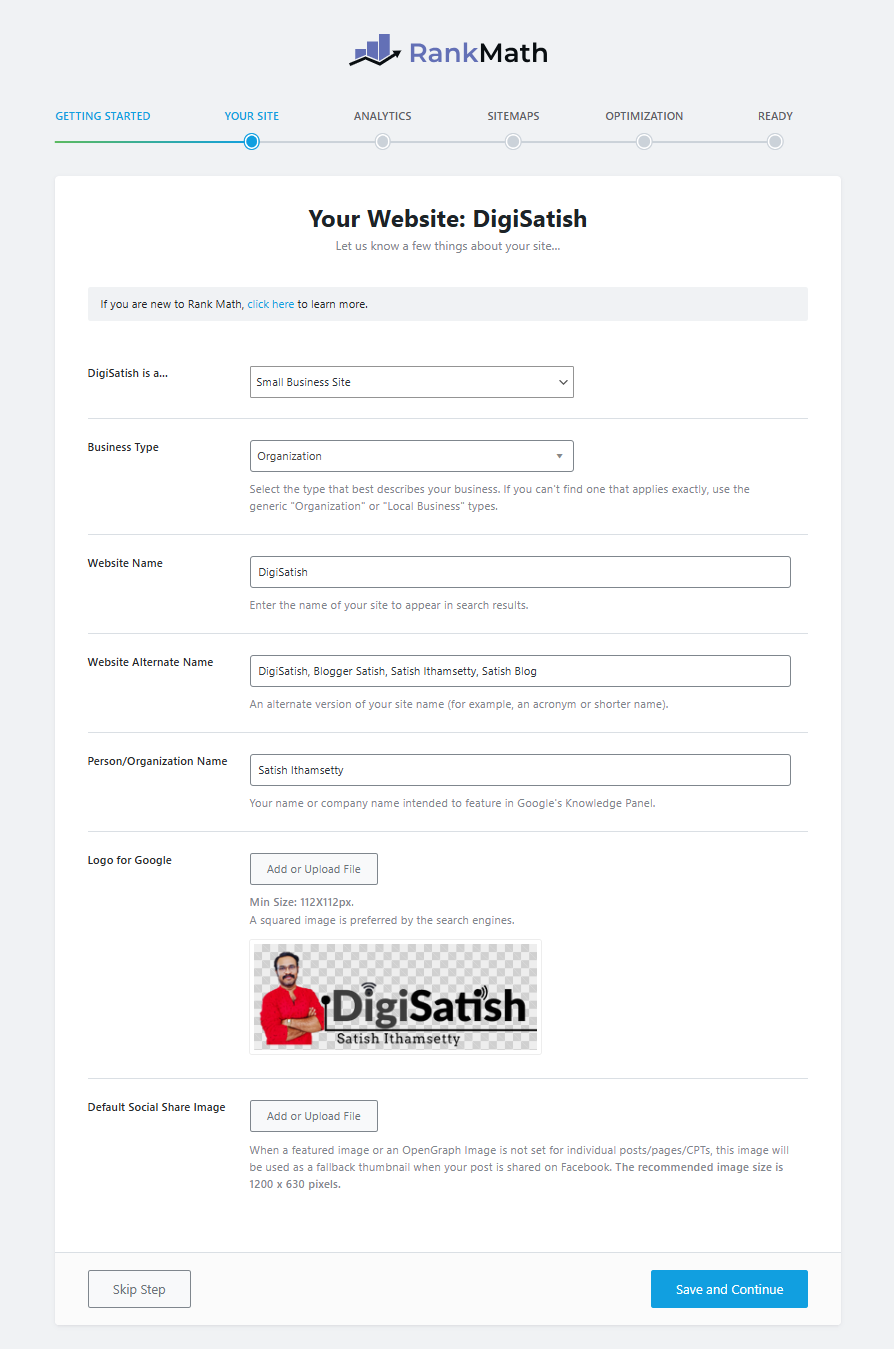
If you select a business option, Rank Math unlocks a comprehensive “Business Type” dropdown with many industry-specific categories.
When no perfect match exists, choosing “Organization” is recommended so search engines still receive clear entity information.
4. Website Name
Here, you set your official website name, which Rank Math outputs as the name property in Website structured data.
This helps Google display the correct site name in search results and reduces ambiguity between similar domains.
5. Website Alternate Name
You can also supply an alternate name—often an acronym or shorter brand variation—used as an alternate Name in structured data.
This is optional but beneficial if your brand is frequently mentioned with a short name or initials.
6. Person/Organization Name
This field defines whether your entity is a person or an organization. It also specifies the name you want Google to potentially show in Knowledge Panels.
Correctly entering your personal or company name here supports a consistent brand presence across search.
7. Logo for Google
Rank Math lets you upload a logo. This logo will be referenced in structured data. This way, Google knows which image to associate with your site.
A minimum resolution of 112×112 pixels is required. A square variation is recommended for the best appearance in knowledge panels and rich results.
8. Default Social Share Image
If a post lacks a featured image, the “Default Social Share Image” serves as a fallback. This applies to platforms like Facebook and other social networks.
Rank Math suggests a 1200×630 px image to ensure good display on most social platforms and to maintain consistent branding.
After finishing the “Your Site” settings, click “Save and Continue” to move from brand and entity configuration into analytics integration.
This step ensures your structured data, logo, and social defaults are stored before you proceed.
Analytics
The Analytics tab connects Rank Math to Google Search Console, Google Analytics, and optionally AdSense, bringing performance data into WordPress.
Using the “Connect Google Services” button, you authenticate your Google account. You grant permissions so Rank Math can fetch and display metrics like traffic, impressions, and earnings.
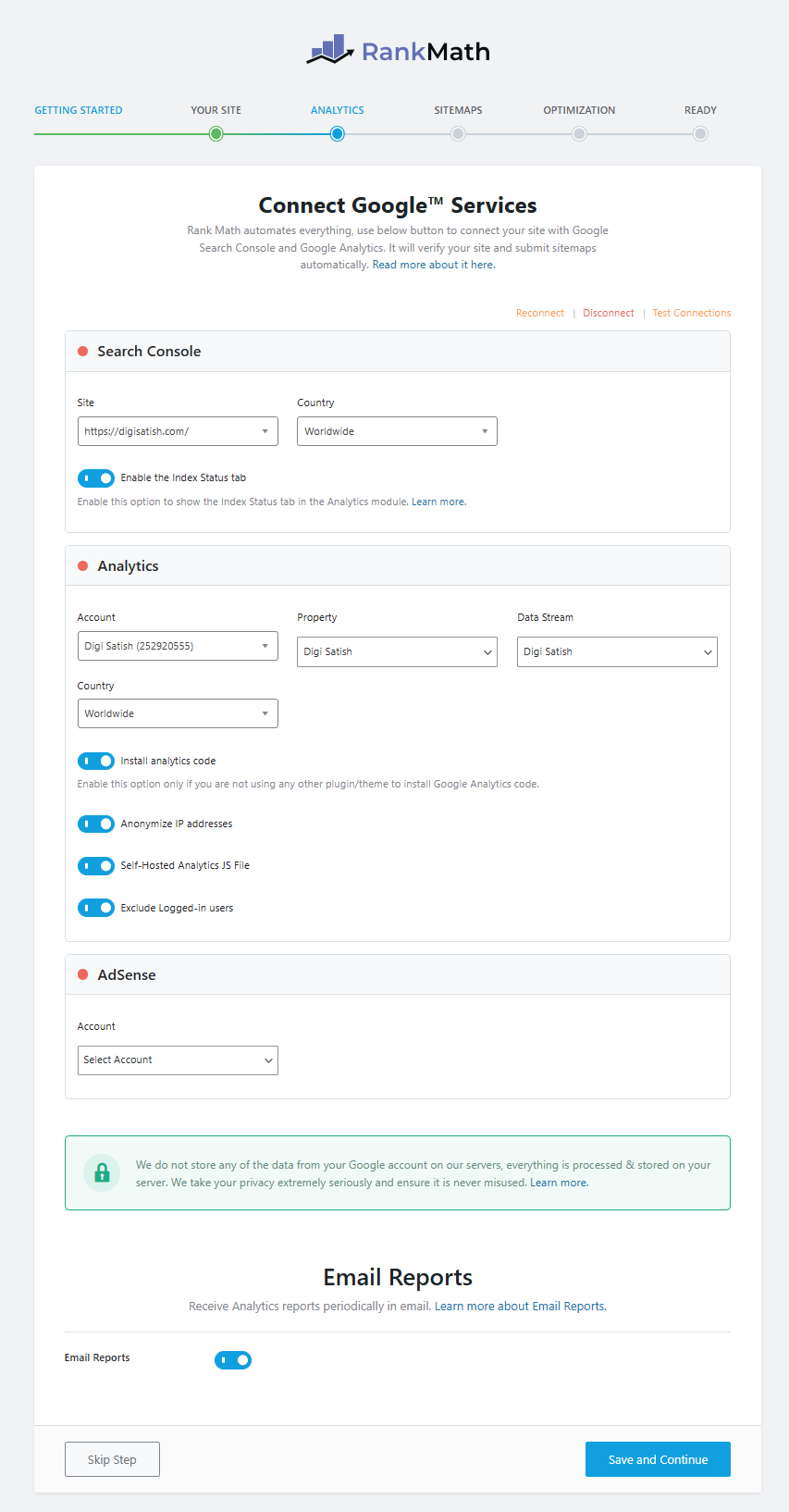
If there’s one step in the Rank Math setup wizard that you should never rush or skip, it’s this one. The Google Search Console integration makes Rank Math more than just another SEO plugin. It transforms it into a genuinely useful SEO dashboard.
I’ll be honest. The first time I ran the Rank Math SEO setup, I clicked “Skip for now.” I told myself I’d connect Google Search Console later. Guess what? Later never came. And for weeks, Rank Math showed zero keyword data, no indexing info, and no useful SEO insights. It felt broken. It wasn’t. I was.
When you connect Search Console during the setup wizard, Rank Math gains permission to:
- Pull real search queries
- Show impressions, clicks, and average position
- Detect indexing and coverage issues
- Sync sitemap submission status
This data is gold, especially for beginners tying to understand whether their SEO configuration is actually working.
During this step, Rank Math asks you to:
- Select your Google account
- Grant permissions
- Choose the correct website property
That last part is where people mess up. I’ve done it too. If your site uses https, select the https property. If you choose the wrong version, Rank Math won’t pull accurate data. It’s not obvious at first, but later you’ll notice missing keywords or incorrect URLs.
Rank Math also offers Google Analytics integration inside the setup wizard. While it’s optional, I recommend enabling it. Having analytics data inside the Rank Math dashboard saves time and helps you connect SEO actions with traffic results.
The frustrating thing I remember clearly was an “authorization failed” message. Turned out, my browser was blocking pop-ups. Simple fix, big headache until I figured it out.
Once connected properly, this integration becomes the backbone of:
- Rank Math keyword tracking
- SEO performance reports
- Content optimization decisions
If Rank Math feels “quiet” or empty after setup, nine times out of ten, Search Console wasn’t connected correctly. Fix this early, and everything else works smoothly.
1. Which Permissions Should I Allow
Rank Math requests permissions for creating and editing Analytics properties. It also requests permission to view Analytics data. Additionally, it can access AdSense metrics and manage Search Console data for your verified sites.
Allowing all requested permissions unlocks full functionality, including automatic verification, property creation, and analytics reporting inside WordPress.
2. Search Console
Within the Search Console section, select your property from the site dropdown. Optionally, choose a target country for PRO users.
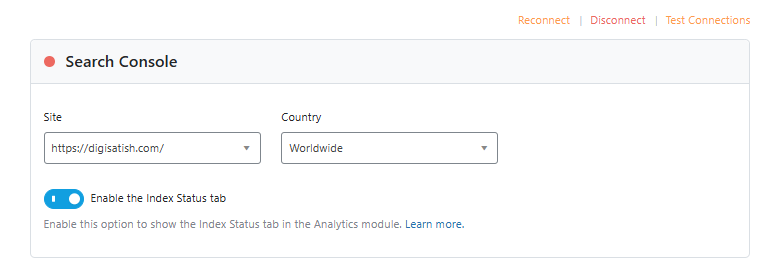
Then enable the Index Status tab. The Index Status view in Rank Math → Analytics → Index Status shows indexed vs. unindexed pages and whether Google has discovered or crawled them.
3. Analytics
Next, choose your Google Analytics account, property, and view, and optionally let Rank Math install the GA tracking code automatically.
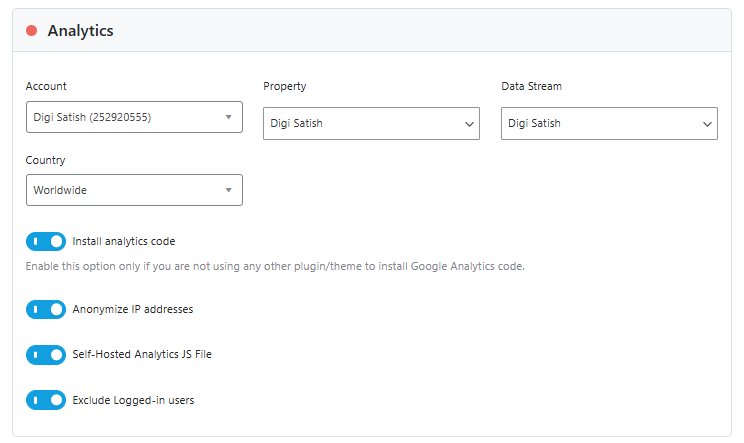
PRO users gain access to several features. These include IP anonymization, locally hosted analytics JS, and excluding logged-in users from tracking. This helps keep data clean.
4. AdSense (PRO)
If you use AdSense and have Rank Math PRO, connect your AdSense account in this section. This will allow you to see earnings directly in your Analytics dashboard.
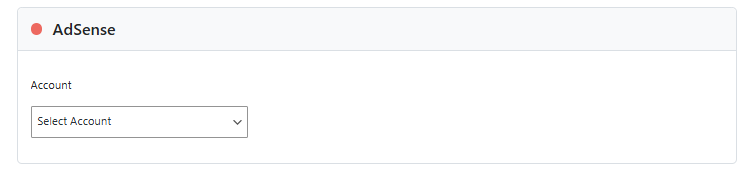
This centralizes SEO, traffic, and revenue data inside WordPress, simplifying performance reviews.
5. Email Reports
Rank Math can send periodic SEO email reports. These reports summarize traffic, impressions, keyword counts, and average positions. This information is derived from your Analytics and Search Console data.

Business and Agency plans unlock more control over report frequency, recipients, and white-label branding options.
6. Benefits of the Analytics Module
The Analytics module also automates verification with Google Search Console and can submit your sitemaps without manual intervention.
It removes the need to manually paste tracking code or handle GA setup, especially helpful on new sites.
Want real SEO data inside WordPress?
With Rank Math Pro, you can track keyword rankings, traffic trends, and performance insights without switching between tools.
Sitemap
In the Sitemap step, Rank Math’s built-in XML sitemap generator creates a Google-compliant sitemap. This means you do not need an extra plugin. First hit on the toggle key to enable the sitemaps feature in the Rank Math setup wizard section.
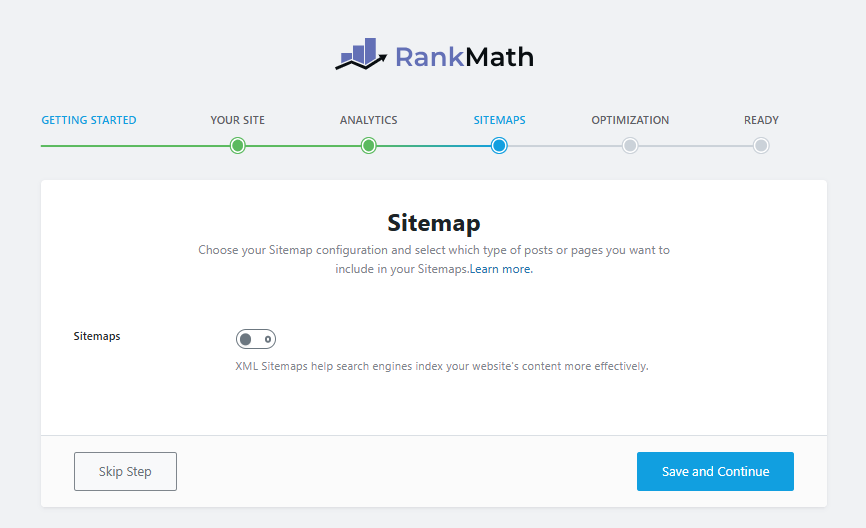
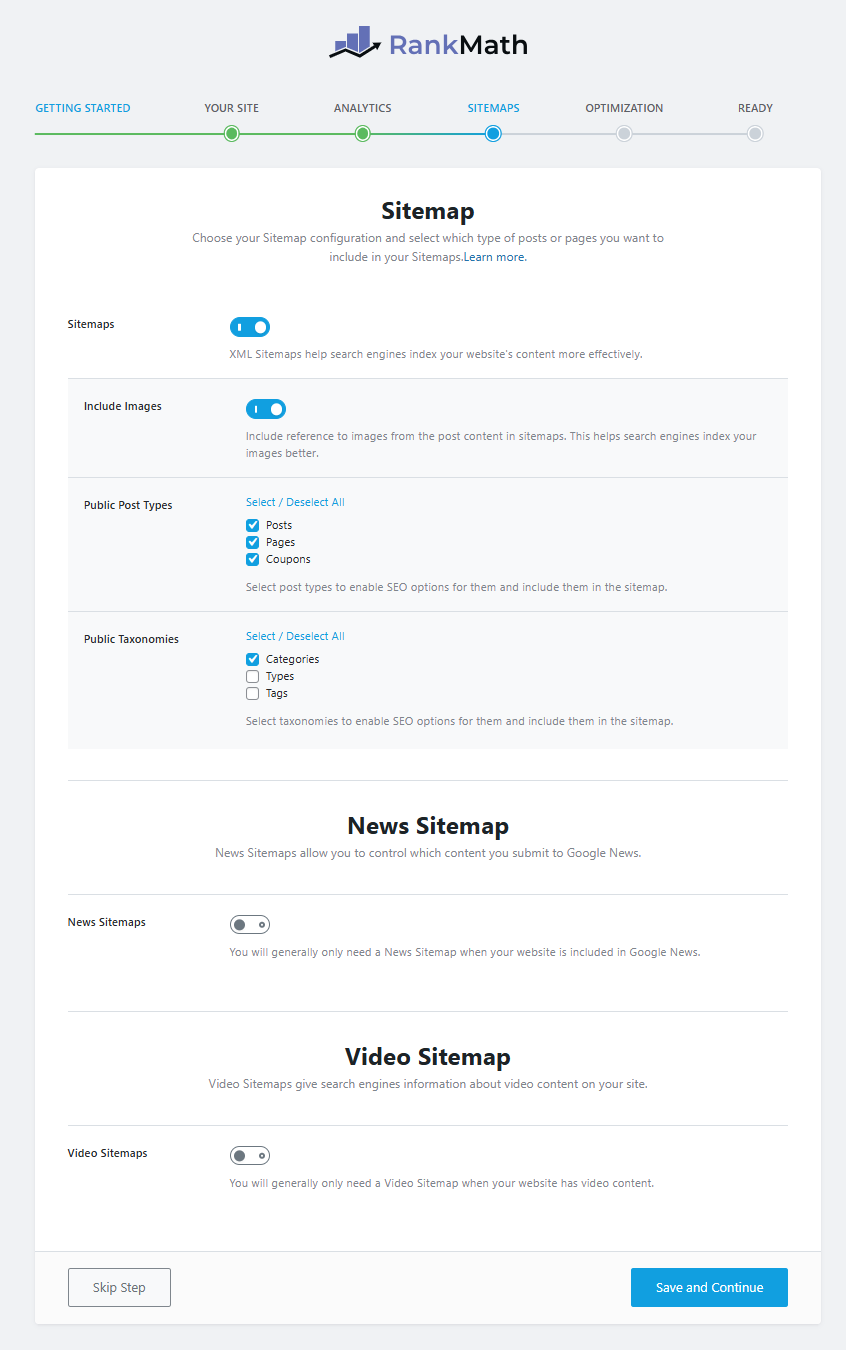
The module provides detailed control over content types and taxonomies for indexing. It also manages how images, news, and video content are handled.
1. Sitemaps
The main toggle enables or disables Rank Math’s sitemap feature entirely, and disabling it hides the dependent options.
Using the built-in generator is recommended for performance and simplicity rather than running multiple sitemap plugins.
2. Include Images
“Include Images” determines whether image URLs are added to your sitemap, which is beneficial for image SEO on most sites.
The only common exception is very large sites with thousands of images, where inclusion can slow crawling and indexing.
3. Public Post Types
Here, you choose which post types (like Posts, Pages, Products, or custom post types) appear in your sitemap.
Including only valuable indexable content helps keep crawl budgets focused and avoids exposing thin or utility content in search.
4. Public Taxonomies
You also decide which taxonomies—such as categories, tags, or custom taxonomies—are included in the sitemap. Selecting only meaningful taxonomies prevents low-value archives from cluttering search results.
5. News Sitemap (PRO)
News Sitemap is a PRO feature that creates a Google News–compliant sitemap containing articles from the last two days.
This is essential for publishers targeting Google News and Discover visibility for timely content.
6. Google News Publication Name (PRO)
For news sitemaps, you must specify your publication name exactly as it appears in Google News. Consistent naming helps Google match your sitemap to your recognized publication.
7. News Post Type (PRO)
“News Post Type” lets you indicate which post types represent news content. Only those are included in the News Sitemap. This keeps the news feed focused on articles that truly qualify as news under Google’s guidelines.
8. Video Sitemap (PRO)
Video Sitemap, another PRO feature, generates a dedicated sitemap for content containing video. It helps search engines discover and rank your videos more effectively in video search results.
9. Video Post Type (PRO)
You can specify which post types should be scanned for video content and added to the Video Sitemap. Limiting this to relevant post types makes video indexing more efficient and avoids unnecessary crawling.
Moving to the Next Step
After configuring the sitemap, click “Save and Continue” to proceed to optimization tweaks. At this stage, Rank Math already has the core technical SEO structures in place for indexing.
Optimization
The Optimization step offers several high-impact SEO tweaks focusing on crawl efficiency and external link handling. These defaults help reduce wasted crawl budget and preserve link equity with minimal manual work.
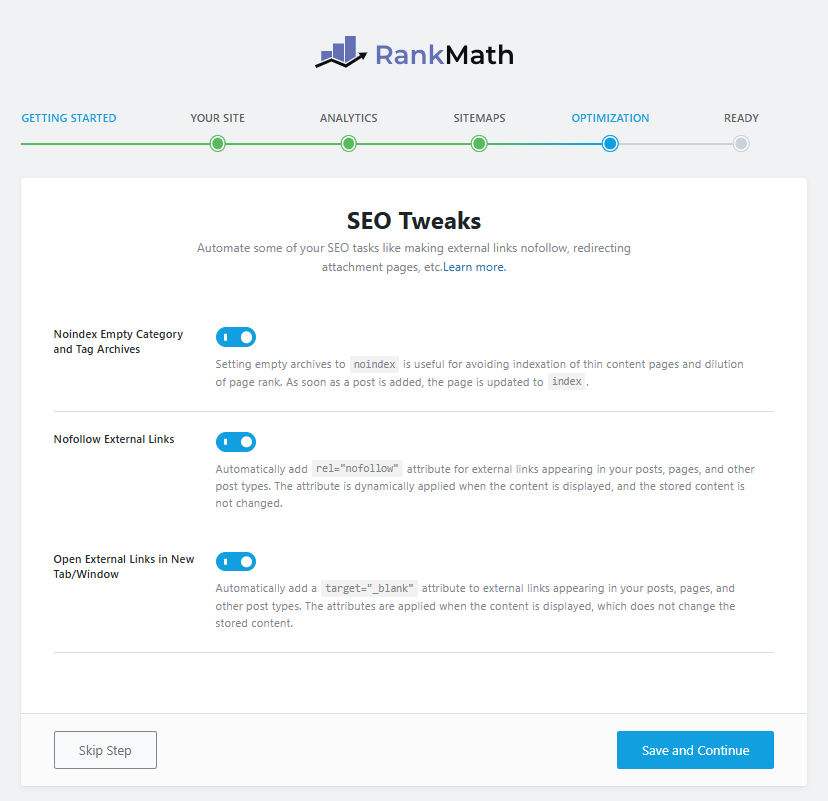
1. Noindex Empty Category and Tag Archives
This option automatically adds noindex to category and tag archives that do not contain any posts. Doing so prevents empty archives from being crawled and indexed, saving crawl budget and avoiding thin pages in search results.
2. Nofollow External Links
Enabling “Nofollow External Links” adds rel=”nofollow” to all external links by default, saving time when managing outbound links. You still keep control using Rank Math’s link blacklist and whitelist to override behavior for specific domains or URLs.
3. Open External Links in New Tab/Window
This setting forces external links to open in a new tab using the target=”_blank” attribute. It helps keep visitors on your site longer by preventing them from fully navigating away when they click outbound links.
Moving to the Next Step
Once your optimizations are selected, click “Save and Continue” to reach the Ready tab. At this point, your fundamental SEO behaviors for archives and external links are standardized.
Ready
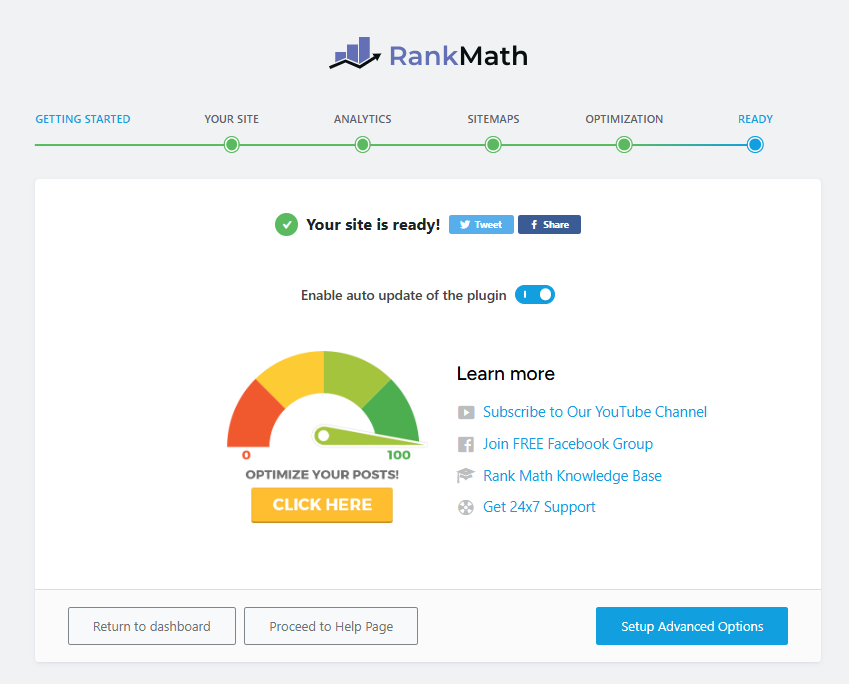
The Ready tab summarizes your completed steps and includes additional resources, plus an option to enable automatic plugin updates.
It is recommended to enable auto-updates.
This allows Rank Math to stay aligned with Google’s frequent algorithm changes.
It also delivers new features without manual updates.
Advanced Settings
If you choose Advanced mode, you gain access to additional configuration screens beyond the basic wizard. These advanced tabs give you detailed control over roles, error handling, and Schema defaults.
Role Manager
The Role Manager lets you enable granular SEO permissions for every WordPress role on your site.
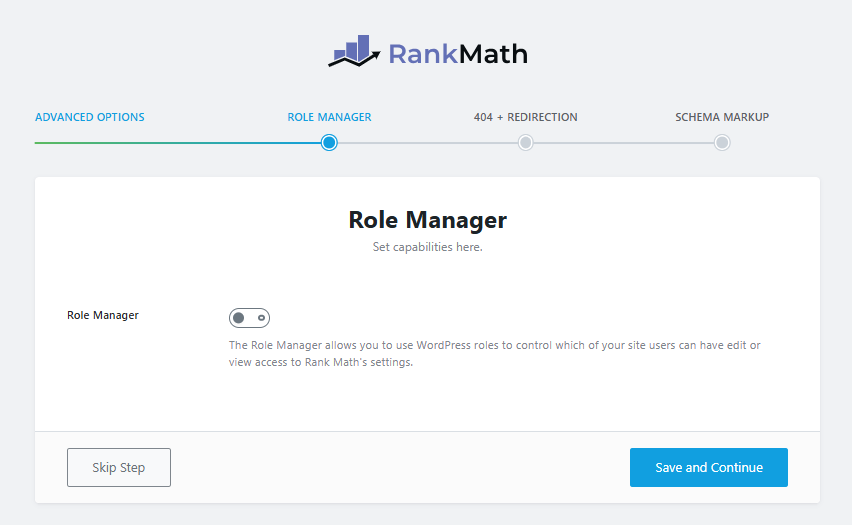
By turning this module on, you can decide which roles (Administrator, Editor, Author, etc.) may edit SEO titles, manage redirects, or access analytics.
404 + Redirections
Rank Math includes a 404 error monitor and a redirect manager. This allows you to detect broken URLs.
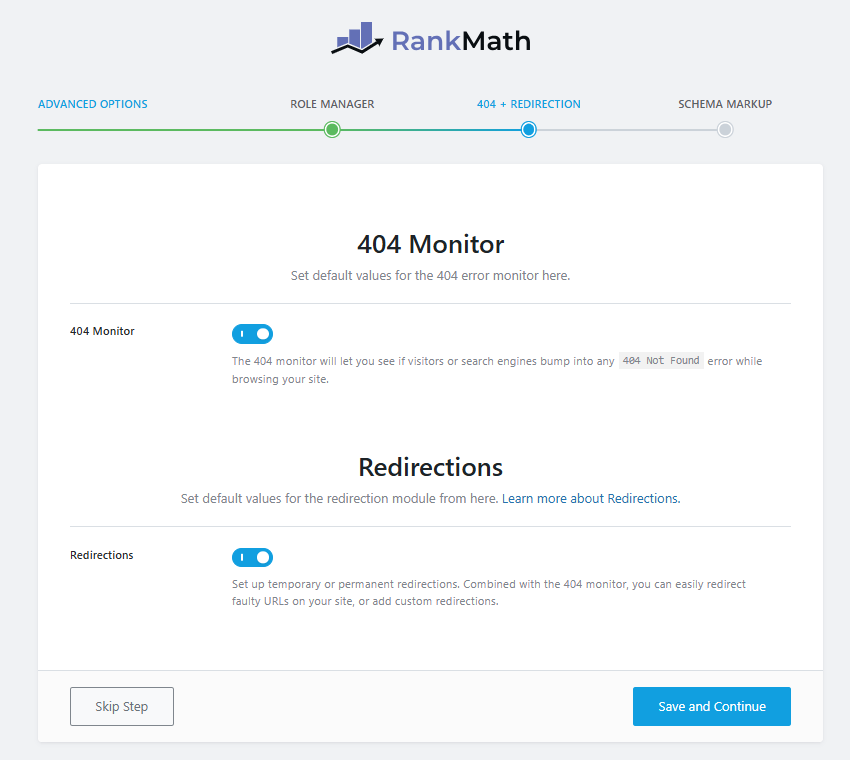
You can then redirect them efficiently. You can disable any overlapping third-party plugins. Instead, rely on Rank Math to handle 404 logging. It also manages redirect creation in one place.
Schema Markup
The Schema Markup step activates Rank Math’s Schema module. It lets you choose default Schema types for posts, pages, and custom post types.
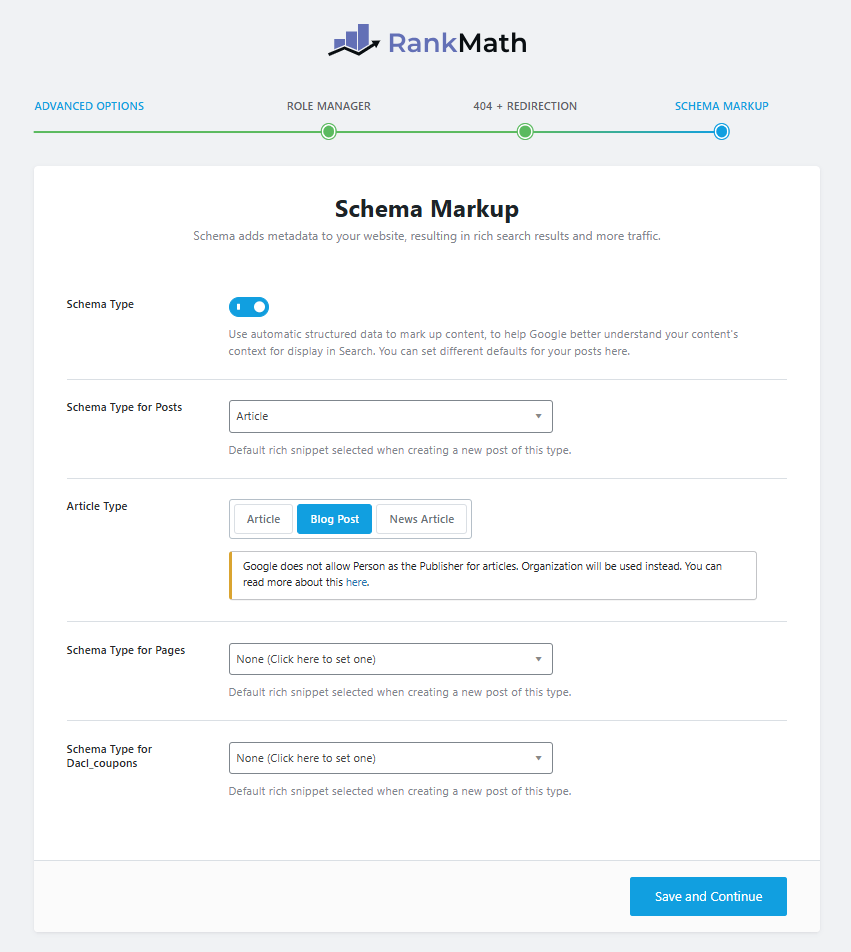
Schema provides search engines with context about your content, such as articles, products, or reviews. This context helps them interpret your content. It can potentially enhance your search snippets.
Default Schema Behavior
Rank Math applies the defaults you set here to new content. However, you can override the Schema per post inside the editor. Leaving defaults enabled ensures that every piece of content has at least a basic Schema. This is critical as structured data becomes more influential for SEO.
Final Thoughts on Setup
After completing all steps and saving your settings, Rank Math confirms a successful setup and returns you to the dashboard. From there, you can fine-tune titles, meta, and other modules. However, the Setup Wizard already establishes a strong technical SEO foundation for your WordPress site.
What to Do After Completing Rank Math Setup Wizard
Completing the Rank Math setup wizard feels like a big milestone. You see the success message and think SEO is done. That’s normal—but in reality, this is where the real SEO work begins.
Follow these simple steps to make sure everything is working correctly.
Step 1: Check the Rank Math Dashboard
Start by opening Rank Math → Dashboard.
Here, quickly confirm:
- Important modules are enabled
- No obvious errors are showing
- Analytics and Search Console are connected
If Google Search Console integration worked, data will begin appearing over time. Don’t worry if it’s empty on day one.
Step 2: Submit the XML Sitemap Manually
Even if Rank Math says your site is connected, manually submit the sitemap in Google Search Console. Never assume.
What to do:
- Copy your Rank Math sitemap URL
- Open Google Search Console
- Paste the sitemap URL and submit
This helps Google crawl your site faster and confirms your sitemap is set up correctly.
Step 3: Optimize One Post to Test Everything
Before doing anything advanced, optimize just one post.
Open an existing post and check:
- Focus keyword field
- SEO title and meta description
- On-page SEO suggestions
- Schema selection
If you see the SEO score respond to changes, your setup is working properly.
Step 4: Avoid Advanced Tweaks for Now
Resist the urge to:
- Override schema
- Enable automation rules
- Chase perfect SEO scores
Let Rank Math collect real data first. SEO tools work best with context, not rushed changes.
Step 5: Be Patient and Let SEO Settle
SEO doesn’t work overnight. Rankings, impressions, and clicks take time.
Early signs to watch for:
- Pages getting indexed
- Impressions increasing
- Keywords starting to appear
These signals mean Rank Math is doing its job.
Think of the setup wizard as the foundation. Once it’s done correctly, everything else becomes easier. Take it slow, test small changes, and let data guide your next steps.
Serious about growing traffic with SEO?
Rank Math Pro is built for bloggers, affiliates, and businesses who want scalable SEO tools that go beyond basic optimization.
Conclusion: Use the Rank Math Setup Wizard the Smart Way
The Rank Math setup wizard isn’t just an onboarding tool. It’s the blueprint for how your site communicates with search engines. When configured correctly, it makes SEO clearer, cleaner, and far less stressful. When rushed, it creates confusion that lingers for months.
The most important lesson I’ve learned is this: You don’t need perfect settings — you need correct ones.
Customize the Rank Math configuration based on your site’s purpose, content quality, and long-term goals. What works for one blog won’t always work for another. That’s normal. Ethical SEO means making choices that help users first and search engines second.
If you’ve already gone through the Rank Math setup wizard and something feels off, don’t panic. Almost everything is fixable. Go back, review the basics, and adjust slowly.
👉 If you’ve made mistakes (or discoveries) while setting up Rank Math, share your experience in the comments. Someone else reading this is probably stuck in the same place you once were.
Ready to go beyond the basics?
Start with Rank Math Free. Then upgrade to Pro when you want advanced schema. You will also get keyword tracking and automation that save time and boost results.
Discover more from DigiSatish
Subscribe to get the latest posts sent to your email.